Nginx로 리버스 프록시 설정
Nginx 설치하기
# ec2(amazon linux 2)
sudo yum install nginx
설치하고 나면 /etc/nginx 에 디렉토리가 생성이 된다. 아래가 기본으로 내려오는 conf파일이다.
# For more information on configuration, see:
#   * Official English Documentation: http://nginx.org/en/docs/
#   * Official Russian Documentation: http://nginx.org/ru/docs/

user nginx;
worker_processes auto;
error_log /var/log/nginx/error.log notice;
pid /run/nginx.pid;

# Load dynamic modules. See /usr/share/doc/nginx/README.dynamic.
include /usr/share/nginx/modules/*.conf;

...

http {
    log_format  main  '$remote_addr - $remote_user [$time_local] "$request" '
                      '$status $body_bytes_sent "$http_referer" '
                      '"$http_user_agent" "$http_x_forwarded_for"';

    access_log  /var/log/nginx/access.log  main;

    sendfile            on;
    tcp_nopush          on;
    keepalive_timeout   65;
    types_hash_max_size 4096;

    include             /etc/nginx/mime.types;
    default_type        application/octet-stream;

    # Load modular configuration files from the /etc/nginx/conf.d directory.
    # See http://nginx.org/en/docs/ngx_core_module.html#include
    # for more information.
    include /etc/nginx/conf.d/*.conf;
    include /etc/nginx/sites-enabled/*.conf;

...
여기서 보면 동적으로 모듈을 설치하기 위해서 /etc/nginx/conf.d/*.conf이와 같이 하위 폴더에 있는 conf 파일을 갖고 오는 것을 확인할 수 있다.
nginx.conf 설정
server {
	listen : 80;
	server_name: {도메인 이름}

  location / {
    proxy_pass       http://localhost:8000;
    proxy_set_header Host              $host;
    proxy_set_header X-Real-IP         $remote_addr;
    proxy_set_header X-Forwarded-For   $proxy_add_x_forwarded_for;
    proxy_set_header X-Forwarded-Proto $scheme;
    proxy_read_timeout  90;
    proxy_connect_timeout 30;
    proxy_send_timeout  90;
  }
}- proxy_pass
- 리버스 프록시 주소
- proxy_set_heade Host $host
- Http Request의 Host 헤더 값
sites-avaliable / sites-enabled
include /etc/nginx/sites-enabled/*.conf 위의 설정 파일에서 이와 같이 sites-enabled라는 폴더를 지정해서 conf파일을 갖고 올 수 있다.
이렇게 파일을 분류해서 저장하는 이유는 설정 파일들을 버저닝을 할 수 있기 때문이다.
두 폴더의 목적은 아래와 같다.
sites-avaliable
- 모든 설정 파일을 저장하는 용도
sites-enabled
- 위의 디렉토리에서 설정된 파일을 실제로 적용할 파일들을 심볼릭 링크로 생성하는 용도
sudo ln -s {origin link} {enable link}
nginx 설정 확인 및 적용
sudo nginx -t
⇒ build 느낌
처음 시작할 경우
sudo systemctl start nginx
이미 시작을 했던 경우
sudo systemctl reload nginx
cf> 인증서 관련 명령어
- certbot certificates
- certbot renew —dry-run
- certbot delete —cert-name {인증서 이름}
SSL 적용
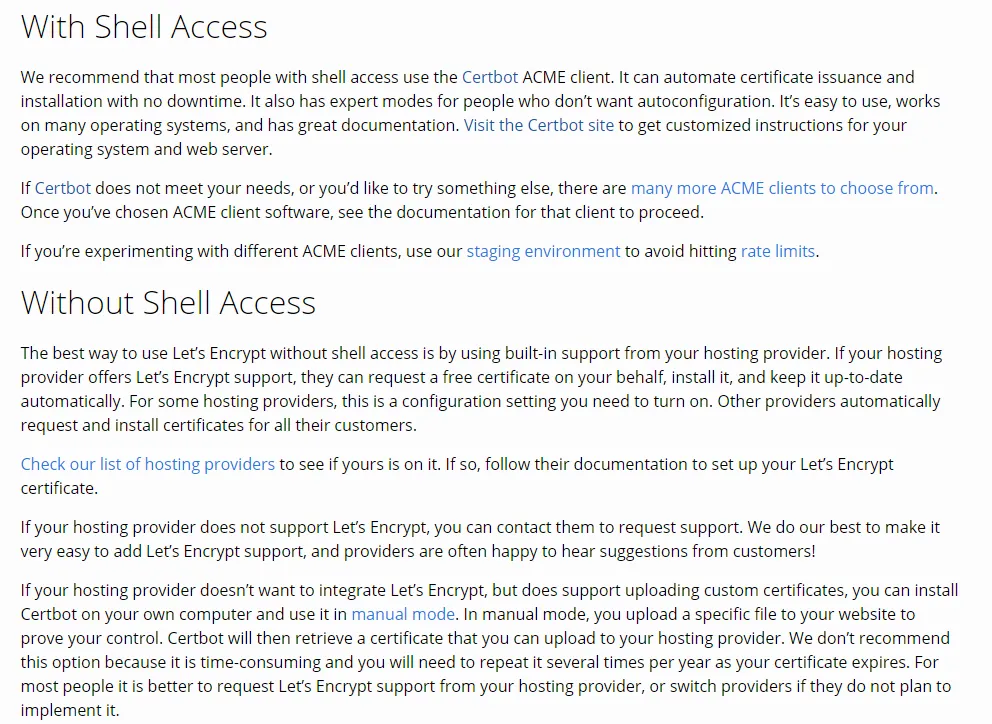
Let’s encrypt를 사용해서 ssl를 적용한다.
Let’s encrypt에서 권장하는 Certbot을 사용해서 인증을 적용한다.
sudo certbot certonly --nginx -d {domain 이름}
- ubuntu 환경에서 certbot은 cli로 받을 수 있다.
- amazon linux에서의 예시
- sudo yum install certbot
- sudo yum install python-certbot-nginx(certbot nginx 플러그인)
- amazon linux에서의 예시
- certonly는 nginx를 적용하지 않고 인증만 먼저 받는다.
인증서를 발급 받으면 /etc/letsencrpyt/live/{도메인 이름} 경로에 pem파일 및 README파일이 생성된다.
이후 conf파일에 인증서 정보를 추가해준다.
SSL 적용 conf
server {
  listen 443 ssl;
  server_name {도메인 이름};
  location / {
    proxy_pass {internal 서버 url};
    proxy_set_header Host      $host;
    proxy_set_header X-Real-IP $remote_addr;
  }
  ssl_certificate /etc/letsencrypt/live/{도메인이름}/fullchain.pem;
  ssl_certificate_key /etc/letsencrypt/live/{도메인이름}/privkey.pem;
  include /etc/letsencrypt/options-ssl-nginx.conf;
  ssl_dhparam /etc/letsencrypt/ssl-dhparams.pem;
}

server {
   listen 80;
   server_name {도메인 이름};
   location / {
      return 301 https://$host$request_uri;
   }
}- ssl을 연결했으므로 기존의 http연결은 https 연결로 redirect해준다.
options-ssl-nginx.confLets Encrpyt에서는 이 파일은 보안 설정을 표준화 하고 강화한다고 한다.- Diffie-Hellman 파라미터 파일을 지정합니다.
- Diffie-Hellman 파라미터는 SSL/TLS에서 안전한 키 교환을 위해 사용되는 값입니다.
- 위의 두 줄은 서버와 클라이언트 사이 통신을 보호 하는 역할이다.
인증서 갱신
Let’s encrpyt에서 받은 인증서는 유효기간이 존재한다.
따라서 유효기간이 지나기 전에 아래의 명령어를 사용해서 갱신해줘야 한다.
sudo certbot renew --renew-hook "sudo service nginx reload"